1. Overview
Shared ToDo currently offers three plans: Free, Light, and Pro.
The paid plans are meant for teams that need higher limits, email-based reporting, and broader visibility through watcher notifications.
Free
Best for trying the service, small personal workflows, or lightweight internal boards.
Light
A practical option for small teams that need more ToDos, more members, and daily report support.
Pro
A stronger option for teams that manage many tasks and depend on overdue and final-deadline reporting.
2. Comparison
| Item | Free | Light | Pro |
|---|---|---|---|
| ToDos | 50 | 100 | 300 |
| Categories | 5 | 10 | 20 |
| Archive | 30 | 80 | 300 |
| Assignees | 5 | 10 | 30 |
| Admins | 1 | 3 | 5 |
| Comments per ToDo | 30 | 50 | 100 |
| Admin-only ToDo management | Yes | Yes | Yes |
| Watcher functionality | - | Yes | Yes |
| Require login | - | Yes | Yes |
| Daily ToDo Report | - | Yes | Yes |
| Overdue ToDo Report | - | - | Yes |
| Final Deadline Overdue ToDo Report | - | - | Yes |
| Board limit per admin email | 5 | 10 | 20 |
3. Email reports
Free
Email reminder timing cannot be configured, and scheduled email reports are not available.
Light
Daily ToDo Report is available, which works well for teams that want a routine daily summary.
Pro
Includes Daily ToDo Report, Overdue ToDo Report, and Final Deadline Overdue ToDo Report.
What you need to use email reports
- Register an email address for each assignee.
- Receive email notifications with a verified email address.
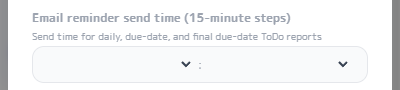
- Set the send time for reports.
Daily ToDo Report
This report sends each assignee a summary of relevant open ToDos at the configured time. It works well when the team wants a predictable daily review flow.
- Not available on the Free plan.
- Available on the Light plan and above.
- Requires email registration, verification, and a configured send time.

Overdue ToDo Report
This report focuses on ToDos whose due date has already passed. It is useful when a daily summary alone is not enough to keep delayed work visible.
- Not available on the Free or Light plan.
- Available on the Pro plan and above.
- Useful for teams that need stronger follow-up on delayed tasks.

Final Deadline Overdue ToDo Report
This report focuses only on ToDos that have passed their final deadline. It is suited to workflows where the final deadline has stronger operational meaning than the regular due date.
- Not available on the Free or Light plan.
- Available on the Pro plan and above.
- Useful for projects that need clear escalation on critical deadlines.
4. Watchers
Watcher notifications are available on the Light plan and above. You can set watchers per ToDo for members who are not the assignee but want to follow the status, reducing gaps in information sharing.
Useful when
- A manager wants to follow progress without owning the task.
- Another team needs visibility into the same workflow.
- You want a small group to receive updates on important tasks.
Main benefit
- Improves visibility without changing ownership.
- Reduces "please keep me posted" follow-up messages.
- Works well alongside email reports and assignee notifications.

5. Require login
How to enable
This feature limits board access to related members only. It is available on the Light plan and above.
Admins and assignees who use the Require login feature must have an email address and password set, and must complete email verification.
When Require login is turned on, accessing the board URL shows a login screen.
The board cannot be viewed without logging in with an email address and password from the login screen.
It cannot be enabled at the same time as PIN Login.

The board can be shown only to admins and assignees who have an email address and password set.
How to log in
When you access a board with Require login enabled, the login screen appears first.
Enter the email address and password set for you as an admin or assignee to open the board.
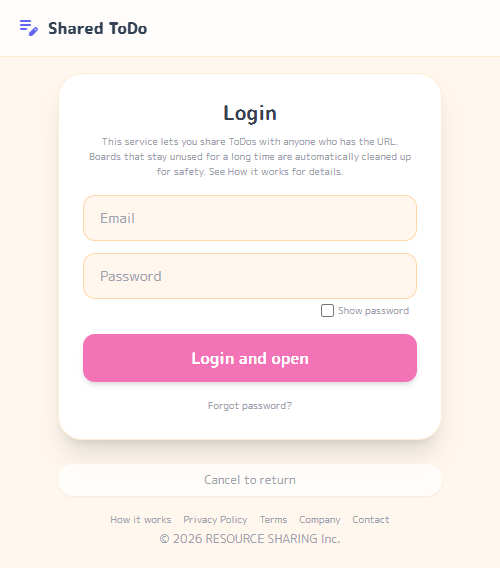
Even if the board URL is shared, users without login credentials cannot view the board.
6. Best fit
When Light is enough
- Your team is small to mid-sized and needs moderate capacity growth.
- A daily email summary is enough for your operating style.
- You want watcher access to improve shared visibility.
When Pro is a better match
- You manage a large number of ToDos and members.
- You need overdue and final-deadline reporting as part of daily operations.
- You want stronger reporting coverage across multiple projects.
7. FAQ
Q. Can I keep using the Free plan first?
Yes. You can start with Free and move to Light or Pro later when your capacity or reporting needs increase.
Q. Which plan includes email reports?
Light includes the Daily ToDo Report. Pro includes the daily report plus overdue and final-deadline overdue reports.
Q. Which plan includes watchers?
Watcher functionality is available on the Light plan and above.